Select an element, place the playhead, and add a keyframe.
### Read the motion first
Select the element, expand its animation lanes on the timeline, and play from before the move to after it. Name the
real problem first: it starts late, takes too long, takes the wrong route, or speeds up the wrong way. Each needs a
different fix.
### Add, move or delete keyframes
Put the playhead on the moment, choose **Add keyframe at playhead** (or press **K** with the element selected), and
change the property. Drag a diamond to retime it (closer together is faster), change its value, or press **Delete**.
With **Auto-record manual edits as keyframes** on (the default), any change you make at the playhead becomes a
keyframe. That's the quick way to pose two moments: set the first, move the playhead, set the second, play. Turn it
off for a fix that should hold the whole clip.
### Easing and paths
- **Easing** is how it speeds up and slows down between keyframes. Start from a preset; use the speed curve when the
start or the stop still feels wrong; use a hold for a jump with no in-between. Judge it playing, not from the curve.
- **Paths:** position keyframes draw a route on the preview. Drag a point to change it, bend a segment to curve it,
hold **Option** while dragging the element to move the whole path. Turn on auto-rotate only when the element
should face where it's going.
### Record a gesture
When a move is easier to perform than describe: select the element, press **R** (**Record a gesture**), move the
pointer, press **R** again. Drag records position, scroll records depth; the shortcuts panel lists the keys for
rotation, opacity and scale. Treat it as a first take: simplify the path and retime it.
### Motion the agent wrote
Some motion comes from a loop or helper in the code. **Unroll to edit** turns supported cases into ordinary keyframes.
When a value says **Computed value. Edit it in the Code tab.**, it can only be changed in the code, or ask your agent:
```text
Keep the same curved route, but make the move finish with the voiceover instead of two beats later.
```
Good motion reveals, points or connects; text gets time to be read; two unrelated moves don't fight for the same
moment. The code-level rules are in the [GSAP animation guide](/guides/gsap-animation).
## Edit the source
The browser editor, your agent and the CLI all work on the same files. Use **Code** for a small change you understand;
use the agent when it crosses files, changes the structure or starts from an error you don't recognize. (In the
[Studio app](/studio-app/edit-with-the-agent) the agent sits beside the preview, so none of the copying below is needed.)
### Choose the smallest safe surface
| Change | Best starting point |
| ---------------------------------------------------------------- | ------------------------------ |
| Visible text, layout, style, media, timing, or supported motion | Canvas, Inspector, or timeline |
| One known value in one known file | Code |
| Story, several scenes, generated animation, or project structure | Agent |
| A reported lint problem with a clear direct fix | The browser editor or Code |
| An unfamiliar failure or a fix spanning files | Copy to Agent |
The choice is about the change, not a permanent workflow. You can move between
the surfaces without exporting or converting the project.
### Make a focused source edit
1. Open **Code** in the left panel column.
2. Select the exact file in the project tree.
3. Find the value responsible for the visible result.
4. Make one focused change.
5. Wait for the preview to refresh, then play the affected moment.
Edits save automatically and can be undone. If a save fails, the editor says so; fix the connection to the preview
server before going on.
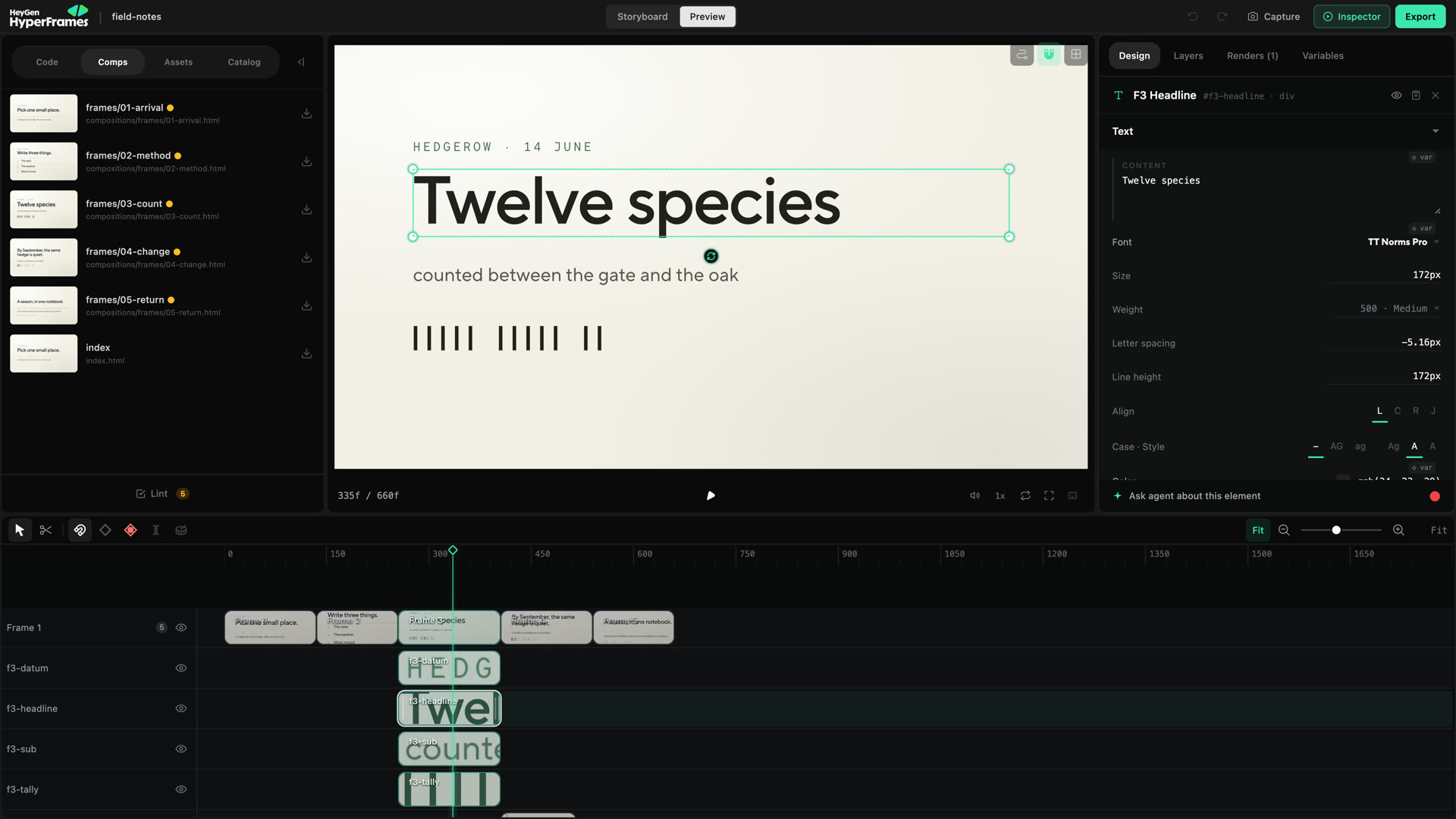 ## Select it
Pause where the element is fully visible and click it. If the wrong thing gets selected (or it's hidden, off-frame or
inside a group), pick it in the **Layers** tab instead. The selection is the same in the preview, the panels and the
timeline.
## Change it
On the preview: drag inside the selection to move it, drag a handle to resize, use the rotation control, crop an image
or video without moving its box, nudge with the arrow keys. Guides show when it snaps.
For exact values, use **Design**. Its sections depend on what you selected:
| Need | Look in Design |
| -------------------------------------------------------- | -------------- |
| Change wording or typography | Text |
| Set position, size, spacing, or alignment | Layout |
| Change fill, border, radius, shadow, opacity, or effects | Style |
| Replace or fit an image, video, or audio source | Media |
| Adjust perspective or 3D transforms | Layout (3D Transform) |
| Correct an image or video's appearance | Grade |
| Change timing or animation | Motion |
| Apply a look or media effect | Effects |
Make one kind of change at a time, play it, then decide on the next.
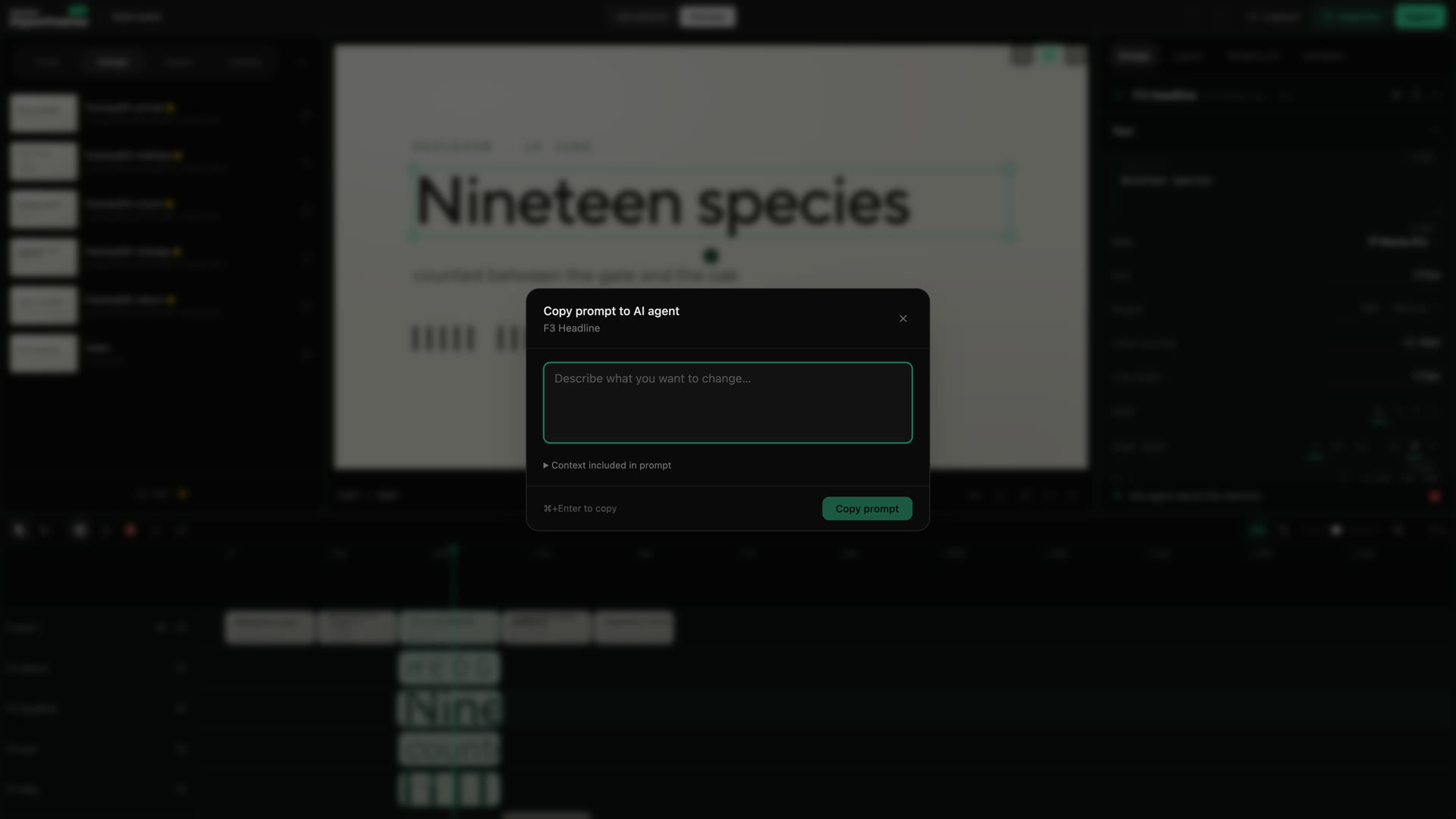 ```text
Keep the current narration and scene order. Make this product panel readable
at the final video size, and do not change the following scene.
```
The copied context tells the agent where to look. Your sentence tells it what
must remain true.
### Run Lint
Choose **Lint** at the bottom of the left panel column. The browser editor opens **HyperFrame
Lint Results** with errors, warnings, file locations, and fix hints when they
are available.
Fix a simple, understood issue directly, then run Lint again. Use **Copy to
Agent** when the source location is unfamiliar or the fix may affect other
files. Add what happened before the error and what you expected:
```text
This appeared after I shortened the intro clip. I expected the title animation
to keep its current timing. Fix the issue without changing the rest of the
opening.
```
Do not paste only the error message when the intended result matters. A
technically valid repair can still make the wrong creative change.
### Use the project-level gates before delivery
Lint is a quick in-editor pass. The project-level commands remain the
final gate, especially when the project contains nested compositions:
```bash
npx hyperframes lint
npx hyperframes check
```
`lint` checks the composition structure. `check` adds browser, runtime, layout,
motion, and WCAG contrast verification.
Passing checks do not approve the story or the final encode. Play the project
after a source fix, then watch the rendered file before sharing it.
### When the preview and source disagree
1. Stop editing until the latest save finishes.
2. Keep the first exact error or save warning.
3. Reload the project only after checking whether another tool changed the file.
4. Run the project checks.
5. Ask the agent with the error, project path, action that caused it, and result
you expected.
Use [Troubleshooting](/help#in-the-preview-and-browser-editor) for editor, preview, and
render-queue failures. Use [Finish and share](/guides/export-and-share) for the
complete approval, validation, render, and delivery path.
## Related topics
- [Edit timing on the timeline](/studio/timeline)
- [Keyboard shortcuts](/studio/index#keyboard-shortcuts)
- [Recover from a browser editor problem](/help#in-the-preview-and-browser-editor)
- [Understand a HyperFrames project](/concepts)
- [Finish, render, and share](/guides/export-and-share)