Import project media, then add a compatible Catalog scene at the playhead.
## Import an asset
1. Open **Assets**.
2. Choose **Import media**, or drop files into the panel.
3. Preview it before adding it to the project.
4. Drag it to the timeline or use it from the relevant inspector control.
Keep clear filenames. `product-dashboard-dark.png` is easier to reuse than `Screenshot 42.png`.
## Reuse project assets
**This project** contains the files available to the open project. **All projects** is a read-only
index of the global `~/.media` cache, where resolved media can be found again across projects. It is
not a file manager, so files cannot be deleted or replaced from that view.
If a large video is still preparing a preview or proxy, wait for that process before judging playback performance.
## Add a Catalog item
Open **Catalog**, search or pick a category (**Captions**, **Code Animations**, **VFX**, **Transitions**, **Effects**)
and preview what you need. Choose **Add** where it's offered to place it at the playhead, or **Ask agent** to copy a
ready request for your agent, which adapts the item to your composition. Then swap the sample content for yours and
match the project's timing and look.
Browse the full [Catalog](/catalog) when you want to compare categories and individual examples.
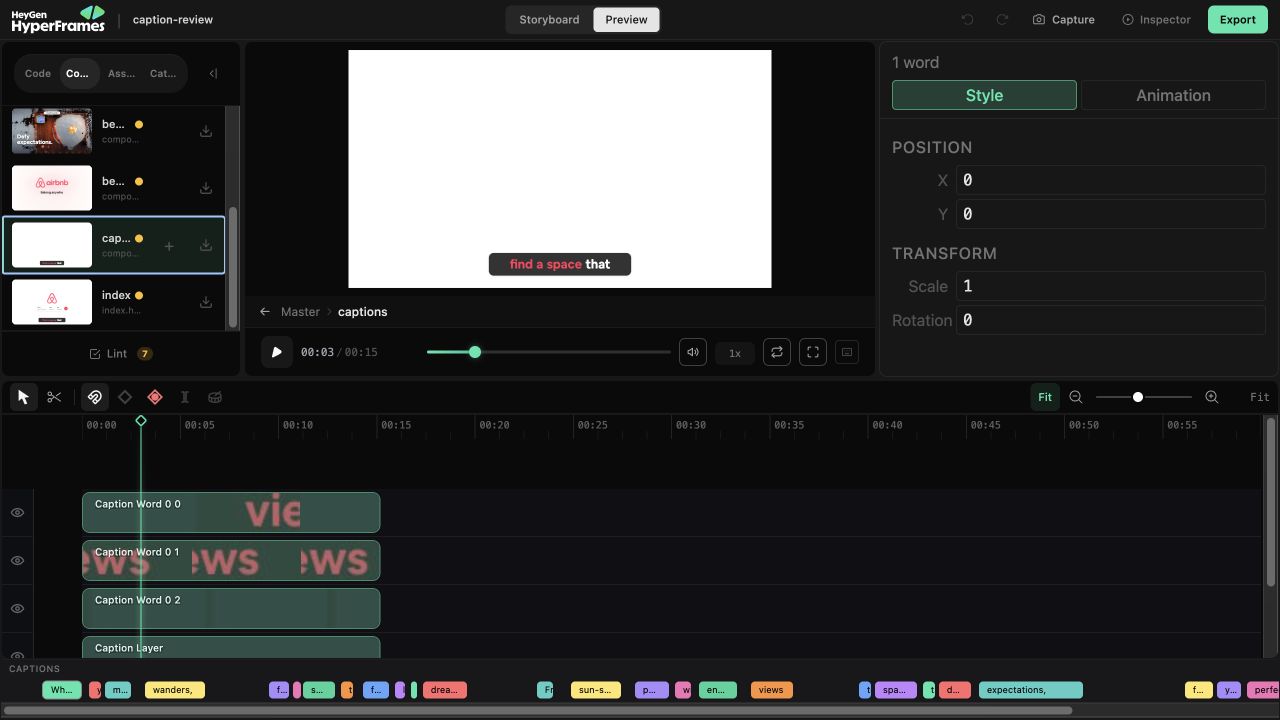 ### What you can change here
Select a word (Shift-click for more), then drag, resize or rotate it on the frame. Arrow keys nudge it by 1 pixel,
Shift + arrow by 10. Color, opacity, font size, weight and family are in the panel. These edits are saved for you, in
`caption-overrides.json`, a moment after you make them.
### What to ask the agent for
Wording, timing, how words are grouped into lines and the caption style itself live in the caption source, not in
the editor. Ask your agent ("break the captions into two-word groups", "fix the spelling of HeyGen") or change the
source.
Then watch once with sound and once muted: names and numbers right, nothing covering a face or a button, and the last
caption clearing cleanly. For reusable styles, browse [caption components](/catalog/components/caption-highlight).
## Use variables
Variables let one project produce many versions without rebuilding its layout or animation.
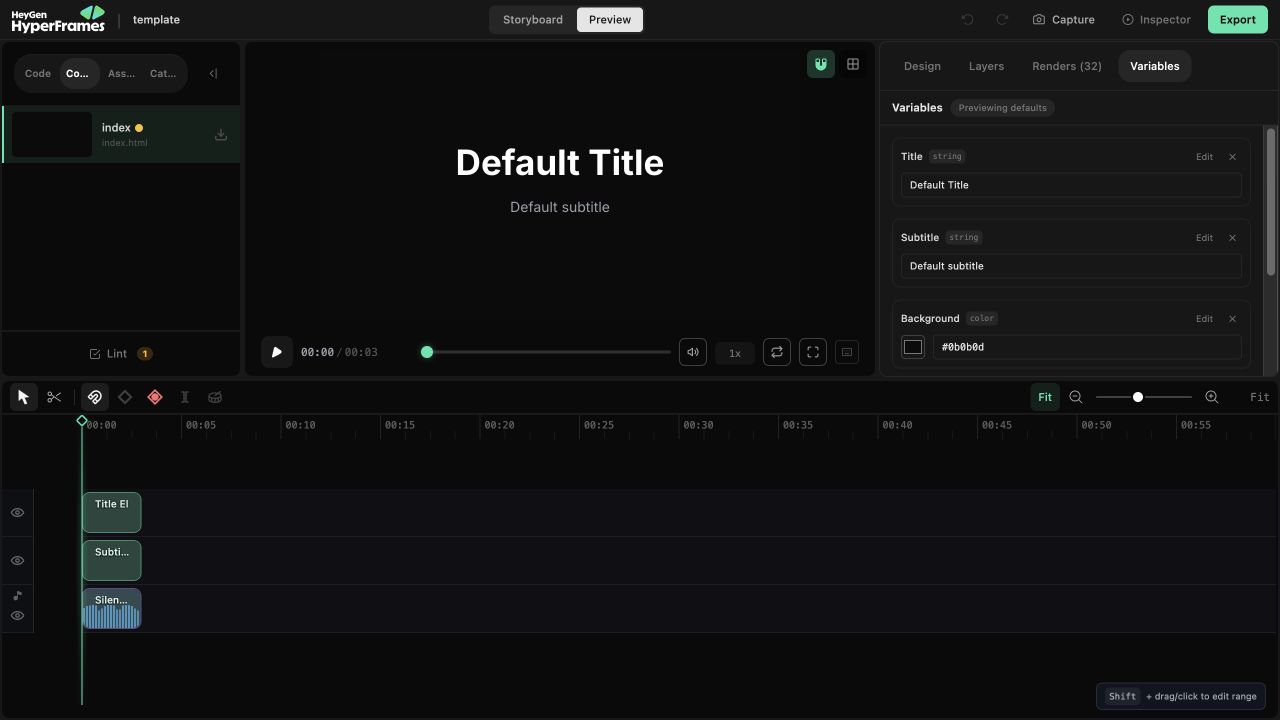 ### Create one reusable input
The quickest path starts from the canvas:
1. Select the element.
2. Open **Variables** in the right panel.
3. Bind the text, media source, text color, background, or font property.
4. Create a new variable or choose a compatible existing one.
Before binding to an existing variable, the browser editor shows its saved default, using the font name or image URL for object values.
For a value that is not tied to the selected element, click **Add variable**. The browser editor supports string, number, color, boolean, enum, font, and image variables. Number variables can include minimum, maximum, and step values; enums can define their allowed options.
Name the input by meaning—`customerName`, `headline`, or `brandColor`—rather than by its position in the design.
### Preview without changing the template
Change a value in the Variables panel to preview that version immediately. The preview is an override: it does not replace the saved default.
The panel tells you whether you are previewing defaults or custom values. Use **Reset** to clear all preview overrides. When a scalar preview should become the new default, use **Set default**.
Use **Edit** to change a variable's label, description, or saved default. For font and image objects, **Default** edits the font name or image URL. Saving keeps the font source, image alt text and fit, and any other stored metadata, including when you change only the label or description.